Update: I’ve written a simpler procedure that will uninstall LAMP with a single command. I’m leaving this post here for historical reasons, but the process is much faster if you follow my newer post.
The most popular post on this blog is How to Install LAMP on Ubuntu 9.10. On that post, I’ve had a few comments asking how to remove the single command LAMP installation. Perhaps the something went wrong during the installation and you want to completely remove everything and start over. Or maybe you just decided you don’t need it installed any more and don’t want the extra files and processes cluttering up your system. For whatever reason, due to popular demand…
How To Uninstall LAMP in Ubuntu 9.10
Actually, I’m only going to show how to remove AMP, since I assume you want to keep the GNU/Linux part of your installation. It would be nice if the removal could be done with a single command like:
DO NOT ENTER THE FOLLOWING COMMAND!!
DO NOT DO THAT!!
That command appears to remove most, if not all, of your Ubuntu Desktop system. So instead, let’s work backwards to remove the AMP part.
Remove phpMyAdmin
The phpMyAdmin installation was the last part of my LAMP installation tutorial, so we’ll remove that first. From the command line:
You’ll be presented with a screen asking if you want to deconfigure the database for phpMyAdmin.

Removing phpMyAdmin
Go ahead and select Yes and hit <Enter>.
You’ll be asked next if you want to purge the database for phpMyAdmin.
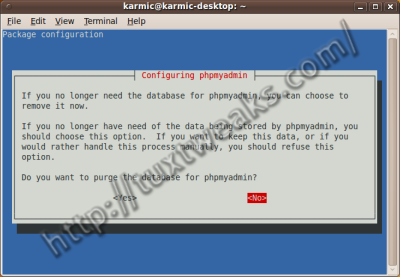
Purge phpMyAdmin Database
Again, select Yes and hit <Enter>.
The next screen is a little confusing. It prompts for the database administrator password, but it gives the impression that it’s installing a new database.
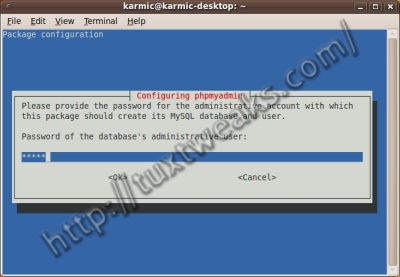
Enter phpMyAdmin Password
Enter the correct password, (you created the password when you installed phpMyAdmin), select Ok and hit <Enter>. The phpMyAdmin removal should now complete.
Remove MySQL
Now let’s see if we can remove MySQL. First we’ll see what packages are installed relative to MySQL. Go to your terminal and enter:
My system gives this list of packages.
mysql-server-5.1
mysql-server-core-5.1
php5-mysql
So let’s get rid of those.
You have successfully removed MySQL Server from your system.
Remove Apache
First, we’ll use a similar command like in the previous step to check what Apache packages are installed.
My results look like this:
apache2-mpm-prefork
apache2-utils
apache2.2-bin
apache2.2-common
libapache2-mod-php5
So let’s remove those.
Apache should be gone from your system.
Cleaning up
There may be a few stray packages left on your system that you no longer need. Get rid of them with:
You’re now ready to reinstall your LAMP server if that’s what you want to do.
Thank you soo much!
thank you very much i apresiate it a lot very usefull!
????????
thanks!!!!!!alot
Brilliant! Worked flawlessly. Thanks!
It works!! very nice
Thank you!
worked perfectly !
awesome this is the best tutorial that I got…
thanks dude, two thumbs up for you!!!!
very useful and informative – Thank you
Thanks for sharing ! Gracias !
Thank you so much. It worked for me clearly.
That was fantastic. Thanx
Mahalo very helpful blog!
thanks.. it is very usefull for me. 🙂
thnak you..
Very useful!
Good
This commands very useful to me thx
Awesome, thanks a lot!
This is very useful.At last i find coorect solution of my problem thanks lot.
This is very helpful! Thanks a lot!
Thank you for saving me a huge amount of time
idem 😀
Hey,
its so good, very very useful. it worked for me.
Thank You.
Hey,
its so good, very very useful. it worked for me.
Thank You.
thanks, but why there is an inscription on my ubuntu
” E: Sub-process /usr/bin/dpkg returned an error code (1)”
please help me..
I’m not familiar with that error. I suggest you try the Ubuntu Forums. http://ubuntuforums.org/
fuf… i reinstall Virtual Box and operating system were in place… removed shell only.
it was impossible at first to put “Do not do this”and then write code that is not done, and not vice versa.
I am Russian and I find it hard to understand it all, but better I have not found …
I removed the flooring system … Virtual Box with three operating systems… PulseAudio…
must now restart my computer and the sound will be gone …
Well, I did link to a much simpler procedure at the beginning of the post: http://tuxtweaks.com/2010/10/remove-lamp-in-ubuntu/
Sorry you had trouble. I’ve done it myself. The good news is that all of your data should be intact.
Thanks for the post!! it helps!!
Thnx…It’s really helpful…
Awesome!!
Thank you so much – you made my day!
I have done the same mistake. I didn’t see the big DO NOT DO THAT!!. And after running that command i had restarted my system and i lost everything stored in my system.
I have a habbit of not reading things, and now I’m going to reinstall Ubuntu. xD
I didn’t see the big DO NOT DO THAT!! thing, and just assumed that, with most guides, I run whatever is in the box through the terminal xD
You can still reinstall the desktop stuff from the terminal with
[term]sudo apt-get install ubuntu-desktop[/term]
That should get the default applications and Gnome desktop installed again. You’ll probably still have install any other applications you had beyond the base install before.
Don’t feel too bad, I’ve actually done it myself even after writing this post. I guess that’s why I have to write things down.
Thanks, it worked fine for me. Really useful info 🙂
when i try to remove mysql-server-core-5.1 it wants to remove also this packages which of course i dont want to remove: akonadi-server* kaddressbook* kdebase-workspace* kdebase-workspace-bin* kdepim-groupware* kdepim-runtime* kdepim-wizards*
kmail* knotes* kontact* korganizer* kpackagekit* kscreensaver* kscreensaver-xsavers* kubuntu-debug-installer*
kubuntu-desktop* mysql-server-5.1* mysql-server-core-5.1* plasma-widgets-workspace*
what can i do?
I’m not sure why all those KDE packages depend on mysql-server-core, but it seems like you have no choice but to keep it on you system if you want to keep those other packages. Just remove the other mysql packages and you should be fine.
Hey there. I got real stupid and forgot my phpmyadmin password. I’ve seen some reset phpmyadmin procedures, but they’re all over my head as a newbie. So I’ve tried your uninstall method and I’ve tried uninstalling through synaptic, but the process just can’t seem to complete without the password. What the hell do I do now, aside from something ridiculous, like nuke/paving my whole box? Any help would be deeply appreciated!
It s is possible to bypass the authentication process and to access MySQL, first stop the MySQL server:
#/etc/init.d/mysql stop
Restart MySQL, disabling network communication and skipping the authentication procedure:
#mysqld –skip-grant-tables –skip-networking &
Get connected to the system database (mysql) of MySQL:
# mysql mysql -u root
Type in the following command and reset your password:
UPDATE user SET password=PASSWORD(‘newpassword’) WHERE user=”root”;
If you didn’t go through the first step, to validate the changes simply type:
FLUSH PRIVILEGES;
If you started MySQL manually(bypassing the authentication process), the server must be restarted:
#/etc/init.d/mysql restart
Now log in with your new password
I tried your method, but when i type ” mysql mysql -u root ” tried both with and without the # , says Access Denied ?
Also when I do the step after that, says bash: syntax error ;L when i type the command.
THANX A LOT MAN… thanx for helping out!
“You’re now ready to reinstall your LAMP server if that’s what you want to do.”
This made me laugh! Thanks! And yes, I want to reinstall server, but its XAMPP this time.
Pingback: Links 2/2/2010: Oracle/Sun Analysis | Boycott Novell
Perfect just what i was looking for spen ages search around because i didnt get it installed properly and needed to redo it all.
Was thinking about installing ubuntu again but you saved my day!
Great… I appreciate it……….
wow thank you!
Thank’s, that’s so good…
Pingback: fsdaily.com