Sure, you can upgrade Ubuntu over the net, downloading the updates from Canonical’s servers. You can even do it over the net with apt-p2p, downloading the updates from other users. However, if you have more than one computer to upgrade, it may be nice to download the updates only once. For the following procedure you will need to download the image for the Ubuntu alternate install CD for your particular architecture.
Once you have the CD iso file, you could burn it to a disk, but you don’t need to. In fact, if you have a netbook it’s easier to just use the iso file.
For this demo I’m using the Jaunty Jackalope Release Candidate image.
Mount The Ubuntu CD ISO File
Open a terminal window and navigate to the directory where you have your Ubuntu CD image. Then mount it with this command:
Run The Upgrade
With the CD image mounted, you can now start the upgrade process with the following command.
At this point you’ll be presented with the choice of pulling the latest updates from the internet or not. If you choose no, it just means you may have some updates to do later with the update manager.
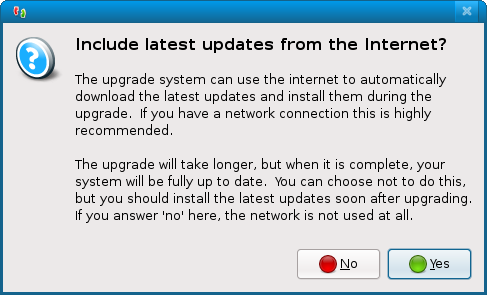
Once you make your choice, the rest should be straight forward.
i hve two pc’s.windows and linux(kubuntu–gutsy).down loaded ubuntu10.10to a cd.
i ran the os from the disk and it seemed pretty good.
problem—evidently need to use gedit–no kate as in kubuntu,also cant seem to
use gedit with terminal access as with kate.looked at packages and no g++
active.my internet is connected to my windows machine.if i install rather than use
the cd as a tryout,would those packages be available.sounds like i am rambling
but that is about the size of it.i still have the 10.10 file on my windows pc.i also have a ksh shell but no help.
thanks for any info.
{-Insert CD.
-Open terminal and type “sudo update-manager -cd”.}
What if I want to use a USB? Will
-Insert USB
-Open terminal and type “sudo update-manager -usb”
work?
Of course it works…..
No ‘update-manager’
-Insert CD.
-Open terminal and type “sudo update-manager -cd”.
Not working for Ubuntu 10.10! Plzz Help!
It’s not working because there is no cdromupgrade on the cd image.
Not working for 10.04 =(