I’ve shown previously how to add an item to Ubuntu’s (or any Gnome desktop) menu, but that post only showed how to edit the menu for a single user. In this post I’ll show how to add an item to the menu so it shows up for every user on the system. I’m going to add a special icon to launch a terminal window from the Applications->Accessories menu in Ubuntu. You can find more info at the GNOME Documentation Library.
Create a Desktop Launcher
Right click on the Desktop and select Create Launcher. Enter a name, I’ll call mine Tux Term. Enter the command, in my case it’s gnome-terminal.
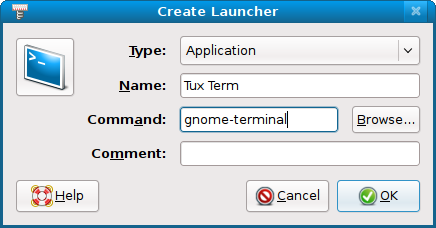
Create a Launcher for Tux Term
Click OK. You’ll now have an icon for Tux Term on your desktop.
Edit the Launcher File
You need to add a line to the launcher file that you just created. Double click on your new icon to launch a terminal for the next step.
gedit “Tux Term.desktop”
Add the following line to the end of the file and save it.
Categories=Utility
The Utility category will make the menu item show up in Applications->Accessories. For the full list of categories, see the GNOME Menu spec for Registered Categories.
Copy the Launcher File to the System Directory
Enter the following terminal command:
You should get something that looks like
Your output might be slightly different. This means that I can put a launcher file in any of the three directories listed. If your system doesn’t list a directory, then put your file in /usr/share/applications/. In my case, /usr/local/share/applications/ seems like the best location. You need to be the root user to copy the file to the system directory. It’s easiest to use the terminal.
sudo cp “Tux Term.desktop” /usr/local/share/applications
Edit the System Menu
Check to see that the $XDG_CONFIG_DIRS variable is set.
If you got output from that, then edit the menu file with:
If your echo command did not yield a result, then edit the /etc/xdg/menus/applications.menu file.
Find the following section of the file and add the lines in bold.
<Directory>Accessories.directory</Directory>
<Include>
   <And>
   <Filename>Tux Term.desktop</Filename>
   </And>
   <And>
   <Category>Utility</Category>
Save the file and exit the text editor.
You’re new Tux Term launcher will now show up in the Applications->Accessories menu. You can use the User Switcher to log in as a different user and verify that the menu item shows up there as well.
Hi, Very good post!!!
But how can I do this for a launcher in gnome panel?
Thanks.
This has worked for me on Cent OS 6.2. I did not complete the last step as I realized the Menu Items had already been added.
Thanks.
Osmumos
Hi Linerd,
I’ve created a quick tutorial to do the same trick (in a perhaps easier way) here: http://www.breaknenter.org/2010/10/share-menus-between-users-in-ubuntu/
Instead of editing the .menu file directly, I simply use the xdg-desktop-menu install command to populate the menu with the .launcher file.
-Carsten
Great tip Linerd,
I have just added an icon for Dutch version of Mozilla-thunderbird in Ubuntu 9.10 for all users and it works like a charm!
Kind regards,
Bas Douma