If you’ve recently updated your Ubuntu installation to version 9.04 (Jaunty Jackalope), then you’ve probably noticed that the update manager starts up automatically when there are updates available. The old behavior was to provide a notification icon in the system tray. If you prefer the new behavior, great. Leave things alone. If you would like Ubuntu to behave like it used to, then read on.
There are at least two ways to change this behavior. The first one is the quick command line way that I found on the Ubuntu Forums. Simply open a terminal window and type the following:
That’s it. Update Manager should now behave the way you are used to.
The second way to do this is through the GUI with the GNOME Configuration Editor. This tool is not installed by default, so if you don’t have it, install it through Synaptic. The package is called gconf-editor. You can also install it from the command line with
Now that you have that installed you can open it from the menu through Applications->System Tools->Configuration Editor.
In the Configuration Editor, navigate to apps->update-notifier. Uncheck the box next to auto_launch and close the Configuration Editor.
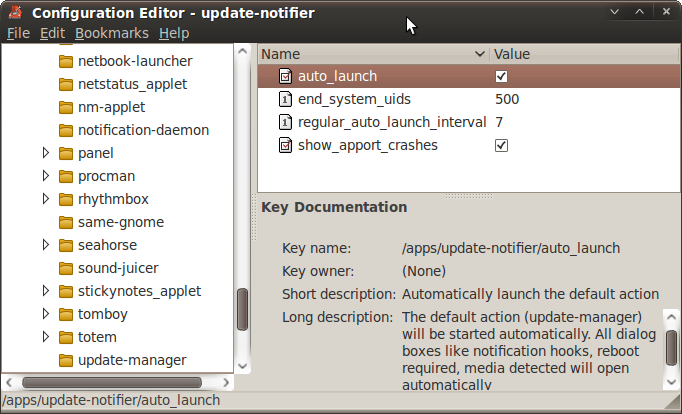
Configuration Editor – Update Notifier
The Update Manager should now behave in the old way.
Pingback: Daily News About Linux : A few links about Linux - Friday, 08 May 2009 00:11