Tag Archives: featured

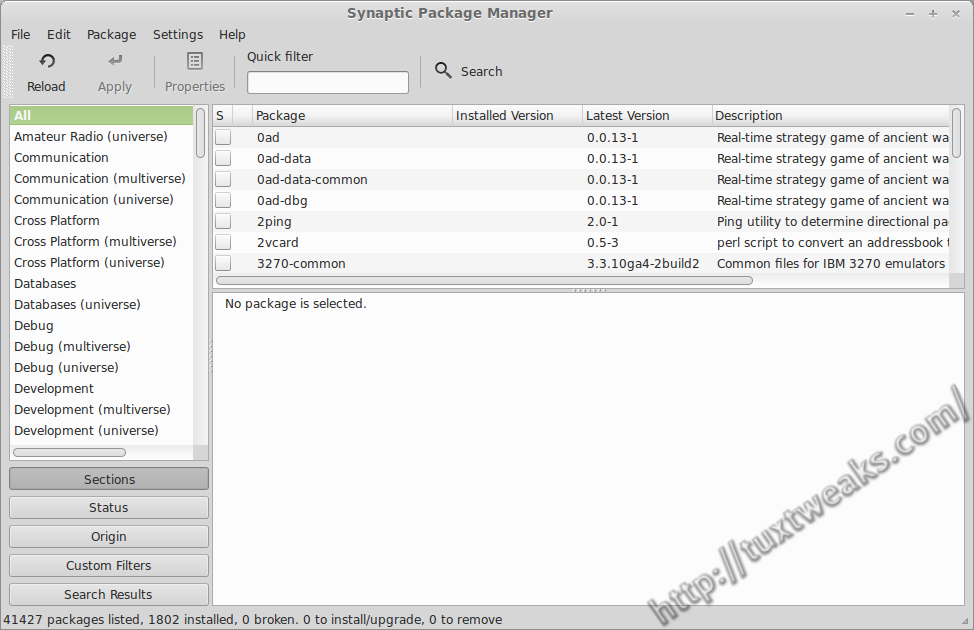
Synaptic in Linux Mint as shipped

Restore Synaptic Mark All Upgrades Button in Linux Mint

UPDATE: This technique no longer works on Linux Mint 17 Qiana. Please see Enable Synaptic Mark All Upgrades Button in Linux Mint 17 for the latest technique.

I recently reviewed Linux Mint 15 Cinnamon Edition and one reader pointed out in the comments that the Mint team removes functionality from the Synaptic Package Manager. Specifically, the Mark All Upgrades button is missing from the tool bar and the menu selection is also missing from the Edit menu. After doing a little bit of research, I was able to figure out how to undo the changes made to Synaptic by the Linux Mint team. In the following tutorial I’ll show how to restore the Synaptic Mark All Upgrades button in Linux Mint. Continue reading

Linux Mint 15 Review

Linux Mint 15 Cinnamon: Ready For Prime Time

Linux Mint 15 “Olivia” is a Linux distribution based on Ubuntu Linux 13.04. Mint is intended to be easy to install and easy to use for desktop users who prefer a traditional desktop layout. It is available in for both 32 bit and 64 bit Intel architectures. It’s also available with two different desktops; the MATE desktop which is a fork of the GNOME 2 series, and the Cinnamon desktop which is based on GNOME 3 and is a fork of GNOME shell to give it a more traditional desktop layout. For this review I’m running the 64 bit Cinnamon edition on my desktop PC with an Intel Core i5 2500k CPU. Continue reading

Install HandBrake on Linux Mint 13

HandBrake is a program for transcoding video files. By default it transcodes video to H.264 format, so the files get compressed to a reasonable size while retaining high audio and video quality. There are versions available for Windows, OSX, and Linux. In this post I’m going to show how to install it in Linux Mint 13 using an Ubuntu PPA (Personal Package Archive). Continue reading

LAMP Installed on Ubuntu

Installing a LAMP Server on Ubuntu

Why Install LAMP on Ubuntu?

Why should you install LAMP on Ubuntu? When working on web development, I prefer to work within the privacy of my own development environment located on my computer. I’d rather make the majority of my mistakes where no one else can see them rather than out in the wild of the Internet. In order to have that private development environment, I install a LAMP configuration. If you’re not familiar with LAMP, it stands for Linux, Apache, MySQL, php (and/or Perl). Continue reading

Apache Server

How to Configure Apache Web Server on Linux

I’ve shown previously how to install a LAMP server in Ubuntu. If the purpose of your LAMP installation was to set up your own web development environment, then you may want to do some further configuration to your system. This Apache howto is not intended to cover Apache configuration in depth. This is just some basic configuration to help you set up a web development environment in Linux. For more information, see the official Apache documentation. Continue reading