How To Select Your Log-in Manager in Ubuntu

April 14, 2010 by
Filed under: HowTo, linux, Ubuntu 

If you've added the Kubuntu packages to Ubuntu, or vice versa, then you can choose whether you want to use KDM or GDM to act as your log-in manager.

To choose your log-in manager, open a terminal and enter

sudo dpkg-reconfigure kdm

Or alternatively
sudo dpkg-reconfigure gdm

It doesn't matter. Either one will work.

Configure Log-in Manager

Configure Log-in Manager


Hit [Enter] on your keyboard to move past the message screen.
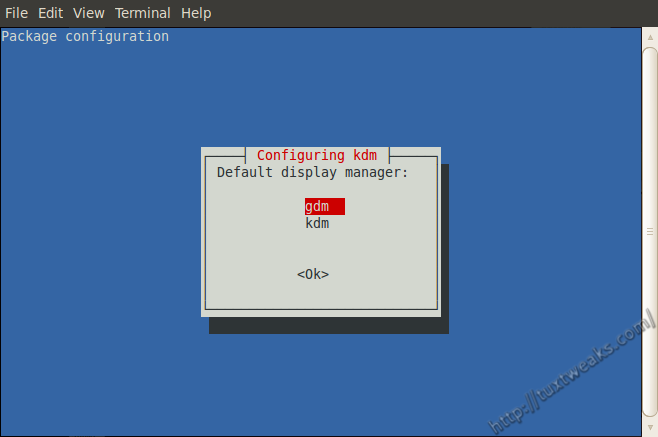
Select Log-in Manager

Select Log-in Manager


Use your arrow keys to select gdm or kdm and hit [Enter].

That's it. Your chosen log-in manager will show up the next time you boot your computer.

Comments

One Response to “How To Select Your Log-in Manager in Ubuntu”

  1. fsdaily.com says:

    Story added...

    This story has been submitted to fsdaily.com! If you think this story should be read by the free software community, come vote it up and discuss it here:

Leave a Reply

Your email address will not be published. Required fields are marked *

You may use these HTML tags and attributes: <a href="" title=""> <abbr title=""> <acronym title=""> <b> <blockquote cite=""> <cite> <code> <del datetime=""> <em> <i> <q cite=""> <strike> <strong>