In this post I’m going to show how to send an email from the Linux command line through your Gmail account. This can be handy if you’re a command line junkie. The real power, however, is in being able to send an email automatically from a script. I’ll be doing another post where I use this in a script to notify me when something has changed on my system. For now though, I’ll just show the setup so you can send an email from the command line. This process has been tested on Ubuntu 12.04 and Linux Mint 13.
First off, I must acknowledge that I did not figure this out on my own. Ubuntu Forums member, Stephen Morgan, showed how to do it here.
Install msmtp
The first step is to install the msmtp-mta package.
[term]sudo apt-get install msmtp-mta[/term]
After the install is complete you’ll need to set up the defaults file with your Gmail account information. You need to create a file in your home directory called .msmtprc.
[term]nano ~/.msmtprc[/term]
Paste the following into the file and edit the portions in bold to reflect your account information.
[term]
#Gmail account
defaults
logfile ~/msmtp.log
account gmail
auth on
host smtp.gmail.com
from your_address@gmail.com
auth on
tls on
tls_trust_file /usr/share/ca-certificates/mozilla/Equifax_Secure_CA.crt
user your_address@gmail.com
password your_gmail_password
port 587
account default : gmail
[/term]
Save the file and exit the text editor. Since this file contains your account credentials, you’ll want to change the permissions to make the file readable only by you.
[term]chmod 600 .msmtprc[/term]
Install mailx
Now that your computer is configured to talk to Gmail, you need a command line email program to handle writing your email. For this I’m going to use mailx from the heirloom-mailx package.
[term]sudo apt-get install heirloom-mailx[/term]
Now you need to set up the defaults file so that mailx uses msmtp to send out the email. This file is called .mailrc.
[term]nano ~/.mailrc[/term]
Now paste the following into the file and save it.
[term]set sendmail=”/usr/bin/msmtp”
set message-sendmail-extra-arguments=”-a gmail”[/term]
You should now be able to send email from your terminal command line.
Sending email from the command line
Now you can send email from the command line like this:
[term]mail -s “Subject” [email protected][/term]
The cursor will go to a blank line. Enter your email message. When you’re done, hit <Enter> to go to a blank line and then hit <Ctrl>+D to end your message. You have just sent your email.
Here you can see that I’ve sent an email to myself from my Gmail account.
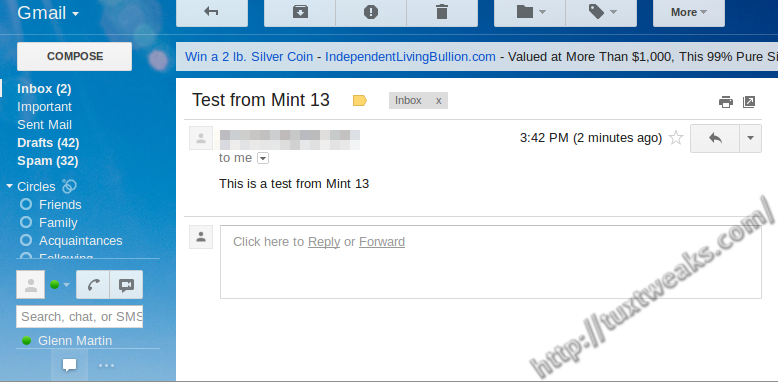
You can also use a message saved in a text file rather than entering it interactively. This is especially useful if you’re automating this process in a script. In this example, the email is saved in a file called message.txt.
[term]mail -s “Subject” [email protected] < message.txt[/term]
This content originally appeared at https://tuxtweaks.com/2012/10/send-gmail-from-the-linux-command-line/.
Ok after a lot of time on this, which my guess is everyone who initially uses ubuntu will eventually want to use the command line to send email. Here is the answer as of March 31st, 2019.
Note since most people have 2FA on for gmail, if you still want to use that you, need to generate an “App password”
which is under google security section, when you log on to gmail.
Use the “App password” instead of your normal gmail password
https://askubuntu.com/questions/12917/how-to-send-mail-from-the-command-line
The answer is at the bottom of the page in above askubuntu link. The checked answers at the top don’t work anymore.
Run:
sudo apt-get install ssmtp
sudo -H gedit /etc/ssmtp/ssmtp.conf
The following needs to be added there:
# The user that gets all the mails (UID < 1000, usually the admin)
[email protected]
# The mail server (where the mail is sent to), both port 465 or 587 should be acceptable
# See also https://support.google.com/mail/answer/78799
mailhub=smtp.gmail.com:587
# The address where the mail appears to come from for user authentication.
rewriteDomain=gmail.com
# Use SSL/TLS before starting negotiation
UseTLS=Yes
UseSTARTTLS=Yes
# Username/Password
AuthUser=yourusernameofgmail
AuthPass=yourGmailPassowrd
AuthMethod=LOGIN
# Email 'From header's can override the default domain?
FromLineOverride=yes
Run:
sudo -H gedit /etc/ssmtp/revaliases
Enter there:
root:[email protected]:smtp.gmail.com:587
Enable "less secure apps" on Gmail:
https://support.google.com/accounts/answer/6010255?hl=en
Test it by running the following on terminal:
echo "Body of mail is abc" | mail -s "Subject is xyz" "[email protected]"
Thank you for sharing your findings.
it’s March 2019 and this doesn’t work, why is setting up mail on the command line so complicated and no one has a working tutorial that works. It’s insane!!! I have spent 4 hours on this and nothing works.
I am on a new ubuntu 18.04 LTS
ash-ThinkPad-P52:~$ sudo apt-get install heirloom-mailx
Reading package lists… Done
Building dependency tree
Reading state information… Done
Package heirloom-mailx is not available, but is referred to by another package.
This may mean that the package is missing, has been obsoleted, or
is only available from another source
when I tried to send an email got the following:
msmtp: no recipients found
Sending data to /usr/bin/msmtp failed: Process exited with a non-zero status
cannot send message: Process exited with a non-zero status
Thank you!
To make it work I had to change the certificate to:
tls_trust_file /usr/share/ca-certificates/mozilla/GlobalSign_Root_CA_-_R2.crt
With ubuntu 16.06 i used :
tls_trust_file /etc/ssl/certs/ca-certificates.crt
Thanks! Fixed my issue on Linux Mint 18.3 “Sylvia”.
how to read mail using this? thank you
THANKS OR PROVIDING PERFECT CODE
This worked great for me on a beaglebone black.
Initially i had problems getting the packages to install but then I replaced the april 2014 debian image with a march 2015 image and everything installed without a hitch at that point.
the GPIO capability of the BBB combined with scriptable command line email opens new worlds of possibilities….
Ty, this appear to be the only one really working!
Oh man!
Finally I’ve found something that really works!
THANKS A LOT!
Thanks a lot! it really helps
I use fedora13, and I get the following error when trying to send and email with mail command as you showed above.
errormsg=’cannot set X509 trust file /usr/share/ca-certificates/mozilla/Equifax_Secure_CA.crt for T
LS session: Error while reading file.’ exitcode=EX_NOINPUT
I see that I do not have the Equifax_Secure_CA.crt file. How can I fix this problem.
Thank you.
I’m also on Fedora (19) and I’m using file “/usr/share/kde4/apps/kssl/ca-bundle.crt” (package kdelibs)
It works for me.
Thanks, I’ve profited from this.
I followed the insructions but get:
send-mail: account default not found: no configuration file available
nice, simple instructions. works a treat!
is there any way to attach files?
Great question. It turns out it’s quite simple, just use the -a switch followed by the path to your attachment file. In the example below the attachment is an image called “attachment.png“.
[term]
mail -s “Subject” -a attachment.png [email protected] < message.txt
[/term]
awesome, thanks very much
thanks from 2017 !!!
To use with Gmail’s two-step authentication, generate a password for msmtp and use that instead of your regular password in the .msmtprc file.
http://support.google.com/accounts/bin/answer.py?hl=en&answer=185833
Thanks for the tip on 2 Factor authentication.
Exactly what I was looking for and it works! Thanks!
Perfect, and super-easy to set up (Ubuntu Precise here). Thanks!
hi thanks this really worked.
I need to know whether we can do it in redhat linux enterprise editon 5 also?
if yes then how?
Does this work if you normally use two-factor authentication for your gmail account?
Yes, works with two-factor authentication.
You will have to generate an application specific password for msmtp on your pi on your Google account page.
Use this application specific password in your .msmtprc file.
Thanks for the tip!