My main computer at home acts as a file and media server for the whole house, so it’s pretty much turned on all the time. There are times when I’m away from home that I want to remotely access or download a file from my home computer. My home internet service uses a dynamic IP address and every once in a while we get a short interruption to our power that forces the modem to reset. Of course, when that happens, the modem pulls a new IP address. I thought it would be handy if I could come up with a script to keep track of my current IP address for me.
Finding my IP address
The first step is to find out my current IP address. In my case, I have a SpeedStream 5100 DSL modem. The address of the modem on the local network is 192.168.0.1 and entering that address into a web browser will bring up a page that looks like this.
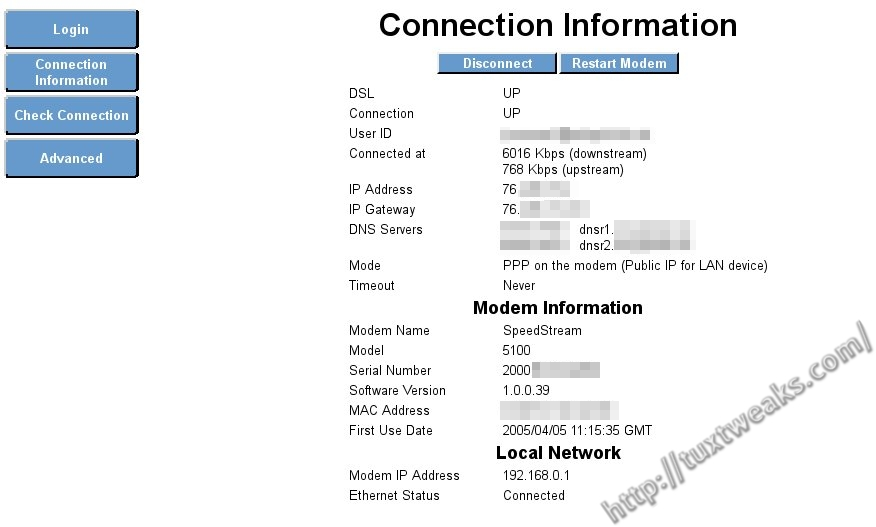
I’ve blurred some identifying information, but you get the idea. You can see from this image that the external IP address is one of the pieces of information displayed.
Getting the IP address as text
So now that I know where to find my IP address, I need to get it in text format and save it in a log file. The text based Lynx web browser is up to the task. There’s a command line switch, -dump, that will display the text of a web page to standard out.
[term]lynx -dump 192.168.0.1[/term]

Modem Web Page Lynx
So now that I have the web page in text form, I can do some further processing to clip the IP address information.
[term]lynx -dump 192.168.0.1 | grep “IP Address” | head -1 | cut -d’ ‘ -f12[/term]
In retrospect, awk would have been an easier tool to pull the IP address rather than cut at the end of the pipeline, but the above command did the job just fine.
Automating the task
One of the things I wanted was to know when my IP address changed even when I’m not at home. So I figured the best way was to send myself an email which I could read from my smart phone or other remote computer. I use Gmail for personal email, so I used my procedure for sending Gmail from the Linux command line. I chose to set it up under the root ID for security reasons since the email account ID and password end up getting stored as plain text in the configuration file.
I then wrote a bash script to check the IP address and save it to a file called ip-address.log under /var/log. The script then compares the IP address to the previous one and if there has been a change, it sends me an email. Here’s a copy of the script.
[term]
!/bin/bash

#Check to see if ip-address.log exists
if [ -e /var/log/ip-address.log ]
then
   mv /var/log/ip-address.log /var/log/ip-address-old.log
fi

#Get my current IP address from the modem
lynx -dump 192.168.0.1 | grep "IP Address" | head -1 | cut -d' ' -f12 > /var/log/ip-address.log

if [ -e /var/log/ip-address-old.log ]
then
   #Check to see if they are the same. If the same then exit, otherwise send email.
   if diff /var/log/ip-address-old.log /var/log/ip-address.log >/dev/null
   then
      #They are the same, exit
      exit 0
   else
      #They are different,send email
      mail -s "IP Update" [email protected] < /var/log/ip-address.log
   fi
fi

exit 0
[/term]
Save the above script as the root user and save it to /usr/local/bin/get_ip. Of course, replace [email protected] with your actual email address. Make sure that the file is executable with
[term]sudo chmod +x /usr/local/bin/get_ip[/term]
Now all that’s left is to set up the script to run every so often. Linux has the cron command to take care of repetitive tasks like that. Since I set up my command line email to run as the root user, I also want my script to run as root. Edit the root crontab with
[term]sudo crontab -e[/term]
Then just add a line to the bottom of the file that looks like this:
[term]
*/10 * * * * /usr/local/bin/get_ip
[/term]
This will run a cron job every ten minutes to run my get_ip script. Now I get an update through my email whenever my modem resets and pulls a new IP address.
A similar technique could be used to monitor all sorts of things. What kinds of tasks would you like to automate? Let me know in the comments.
This post originally appeared at https://tuxtweaks.com/2012/12/keeping-track-of-my-ip-address/
and you think that is gonna help ? right ..? Listen man this is a wonderful tutorial by ###Linerd#### and i thank him for it , we beginners are trying to become Linux Ninjas , and are saying NO to ready made tools @@@ asfix90 I ll d write a script instead to do just that …. thanks once again for this tutorial ###Linerd####
I’m sorry, I meant “external IP address” where I said “adress” and “sudo apt-get install curl” instead of “sudo apt-get curl”.
Now, I’m trying to modify my external IP address at my domain provider’s website automatically. I’m thinking in lynx to login at the website’s control panel and modify it. Have you any idea to illustrate me? Thanks in advance.
You can use curl to obtain your external IP adress:
sudo apt-get curl
curl ifconfig.me
I run
ifconfigto get the IP address (Ubuntu 12.04).ifconfig will only tell you your IP address on your LAN. It will not tell you the external Internet IP address.
There are many methods and tutorials that teach you how to find an ip address,I use this tool http://www.ipgp.net/ to display information about any ip address, just enter any IP address into the box and you will get the country, city, region, ISP, street address and the satellite location map for every query.