Sponsors
Top Content
- How To Control Fan Speeds in Ubuntu
- Linux Mint 15 Cinnamon: Ready For Prime Time
- 6 Things To Do After Installing Ubuntu 13.04
- Distro Review: Xubuntu 13.04 Raring Ringtail
- Remove Old Kernels In Ubuntu With One Command
- Linux Mint 15 "Olivia" Released!
- How to Configure Apache Web Server on Linux
- Installing a LAMP Server on Ubuntu
- How To Rotate The Screen in Ubuntu With The Nvidia Driver
- Send Gmail from the Linux Command Line
How To Install AVG Antivirus 7.5 in Ubuntu
EDIT: This post was written for version 7.5 of AVG which is no longer available. The process is different for version 8.5 and there is no longer a GUI for AVG on Linux.
AVG Technologies, makers of the popular AVG Antivirus for Windows also makes a free version for Linux. Installing AVG Antivirus in Ubuntu Linux is fairly easy.
Download the .deb installation package from AVG's website. You can do this from the terminal with:
The dependencies should already be resolved for basic functionality, but you may want to make sure that you have the python, python-gtk2, and python-glade2 packages installed first.
Once the download is complete, double click on the file in your file manager to install it with the Gdebi package installer. Click Install and enter your password when prompted.
Update the license information.
Enter your name and company information at the terminal prompts.
Add your userid to the avg group.
where userid is your log-in ID. You'll have to log out and back in for the group ID change to take effect.
You can now start AVG from the menu at Applications->Accessories->AVG for Linux Workstation.
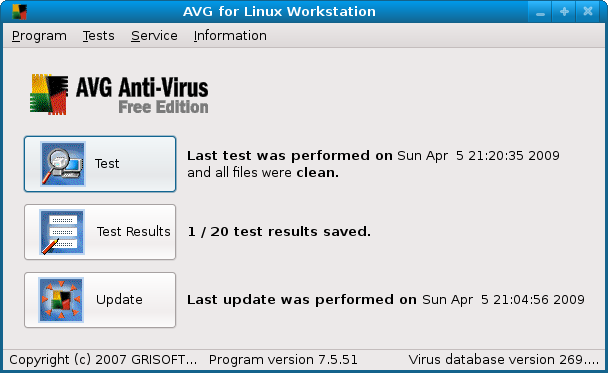
You can now update the virus definitions with the Update button.
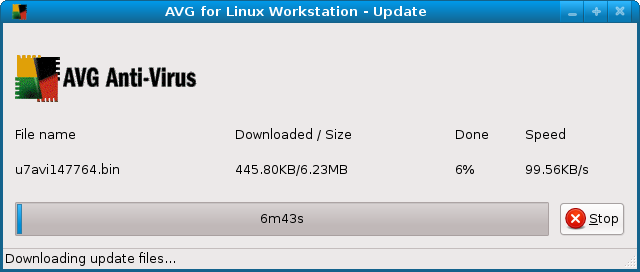
After the update is complete you can select an area of your computer to scan using the Test button.
General preferences can be modified under the AVG menu Service->Program settings.
For more information on advanced configuration options, check the AVG User Manual.
Related posts:
Comments
7 Responses to “How To Install AVG Antivirus 7.5 in Ubuntu”
Leave a Reply Cancel reply
Subscribe by email
Categories
Tags
Apache Apple audio avast bash Chromium command line dell Distro Review fedora firefox flac gadgets gnome google google chrome grub GStreamer HowTo HP humor ImageMagick jaunty karmic koala LAMP linux Linux Mint Lucid Lynx mp3 Nautilus netbook network news ogg open source opinion phpMyAdmin review security text edit Ubuntu usb web development windows WordPress-
Archives
- ▼ 2013 (9)
- ► 2012 (19)
- ► 2011 (25)
- ► 2010 (56)
- ► Dec (4)
- ► Nov (3)
- ► Oct (4)
- ► Sep (4)
- ► Aug (3)
- ► Jul (5)
- ► Jun (4)
- ► May (8)
-
- How To Rotate The Screen in Ubuntu With The Nvidia Driver
- Lynx: A Text Only Web Browser
- Midori - A Lightweight Web Browser
- From The "WTF, Apple?" Dept.
- There's Always One Bad Apple
- Ubuntu on "The Big Bang Theory"
- Organize Your Recipes with Gourmet Recipe Manager
- Add an Open Terminal Button to Nautilus
- ► Apr (6)
- ► Mar (5)
- ► Feb (3)
- ► Jan (7)
- ► 2009 (88)
- ► Dec (4)
- ► Nov (5)
- ► Oct (7)
- ► Sep (6)
- ► Aug (13)
-
- Enable The RT2860STA Linux Wireless Driver
- Fade Out Images with GIMP
- Command Line Basics: Redirecting Output
- Command Line Basics: View Files With cat
- Command Line Basics: Determine File MIME Types
- Batch Watermark Images in Linux
- How To Watermark Images With ImageMagick in Linux
- Nautilus Script to Launch a Terminal
- SUSE Studio Screenshot Tour
- Edit Your GNOME Configuration
- Open Source Apps for Windows to Introduce Users to FOSS
- Name The Next Apple Product
- Fast Boot Your PC With Xandros Presto
- ► Jul (5)
- ► Jun (7)
- ► May (11)
-
- Command Line Basics: Create Custom Commands with Alias
- Command Line Basics: List Files with ls
- Space Saving Tips for Your GNOME Desktop
- Windows Web Browser Shootout
- Command Line Basics: Navigating the File System
- Bash to Basics: Print Text with echo
- Command Line Basics: echo
- Install the Firefox 3.5 Beta in Linux
- Create a Bootable USB Drive with Ubuntu and FreeDOS
- Revert the Update Behavior in Jaunty to the Old Way
- Who Needs Windows?
- ► Apr (11)
-
- Install Picasa 3.0 for Linux (beta)
- Eight Reasons Your Next Computer Should Run Linux
- Jaunty Boots 32% Faster on the MSI Wind
- The Jackalope is Jaunting!
- Windows 7 Won't Close the Door For Linux
- Upgrade Ubuntu with a CD Image
- Get a Jump on Jaunty Jackalope
- Secure File Transfer in Nautilus with SFTP
- Add the NT Backup Tool to Windows XP
- Why I hate Dell
- How To Install AVG Antivirus 7.5 in Ubuntu
- ► Mar (13)
-
- Create an Encrypted Folder in Ubuntu with Cryptkeeper
- How To Create Multiple Firefox Profiles in Windows
- Install the Fedora 10 Desktop Theme in Ubuntu
- Download the Fedora 10 Wallpaper
- How To Install the Echo Icon Theme in Ubuntu
- How To Install the Nodoka Theme Engine in Ubuntu
- Create Your Own .deb Packages with Checkinstall
- Install Your Own Ringtones with Ubuntu and BitPim
- Install Multimedia Codecs in Ubuntu 8.04
- Use Linux to Solve the Linux Journal Scramble
- Dvorak Rings Death Knell for Microsoft's Business Model
- Microsoft to Release Windows Linux!
- Review: Sabrent 68 in 1 Internal Card Reader
- ► Feb (2)
- ► Jan (4)
- ► 2008 (37)
- ► Dec (8)
-
- Update: Logitech LX8 in Ubuntu
- Create a Button to Restart USB in Ubuntu
- Create an Ubuntu Live USB Drive
- Install Fedora Cursor Theme in Ubuntu
- Change the Week Start Day in Ubuntu
- Automatically Update the ClamAV Virus Database
- Add On-Demand Virus Scanning to Nautilus
- Put Your Own Face on Tux - Wii Fit Review
- ► Nov (6)
- ► Oct (8)
-
- Ubuntu 8.10 is Out!
- Split mp3 Files With mp3splt
- How To Install RealPlayer 11 in Ubuntu
- How To Install Free42 in Ubuntu
- Review - Sony MDR-NC6 Noise Canceling Headphones
- How To Set Up a Home Network With Ubuntu, Part 3
- How To Set Up a Home Network With Ubuntu, Part 2
- How To Set Up a Home Network With Ubuntu, Part 1
- ► Sep (6)
- ► Aug (9)
-
- How To Control Fan Speeds in Ubuntu
- How To Install avast! Antivirus in Windows XP
- How to Launch a Program in Ubuntu Without Using The Menu
- Review - Logitech LX8 in Windows XP
- Google Starts "Free The Airwaves" PR Campaign
- Review - Logitech LX8 Cordless Laser Mouse
- Subway Doesn't Like Linux!
- How To Add An Item To Ubuntu's Menu
- How to resample MP3 audio files on Linux using LAME
Favorite Sites


I got Cyberdefender antivirus software, and liked the free scanner and spyware remover that I bought the upgrade and it really saved my ass when I was near a deadline and it blocked a bunch of virus attacks I got from some websites.
I did find out that they are a NASDAQ company, which means there is some accountability and that they sell a valid product. I will try the registry cleaner, since I had such a positive experience from Cyberdefender anti-virus.
I haven't tried Cyberdefender, so I can't attest to the quality of the product. However, being listed on NASDAQ is no guarantee of a valid product. It only means they have sold shares in their company and NASDAQ has chosen to list them.
There is no registry to clean on Ubuntu, so you only need that if you're on Windows.
I am new in AVG can be installed in ubuntu, thanks a lot tutorial. I will try to install on my ubuntu.
[...] installazione seguendo procedura di questo sito , ricevo errore in fase di download, o il server dove risiede è indisponibile oppure non esiste [...]
I tried following the instruction on this page without success. The wget and installation seemed to work fine but there is /opt/grisoft/avggui/bin/avggui_update_licinfo.sh file.
yeah, it just says:
~$ sudo /opt/grisoft/avggui/bin/avggui_update_licinfo.sh
sudo: /opt/grisoft/avggui/bin/avggui_update_licinfo.sh: command not found
@Hugh & ninuninu - It appears that AVG for Linux has changed quite a bit since I originally wrote this post. The download link was originally http://download.avg.com/filedir/inst/avg75fld-r51-a1243.i386.deb which no longer works. I'm sorry, I should have tried the new version before I updated the download link.
The new version of AVG for Linux has no GUI. It does automatically register with a free license during installation. The executables are located in /opt/avg/avg8/bin.
If you want a GUI based virus scanner for Ubuntu, I suggest you check out ClamTK. You can install it with: