I recently got a new TV that allows me to stream audio and video from my computer to the TV. I tend to archive music from CD's I've purchased in FLAC format. Unfortunately, FLAC is not one of the formats supported by my TV. I decided to write a little script to convert my music archive into one of the supported file formats.
I've done a few different posts about re-encoding audio files. In my earliest one I showed how to re-sample a folder of MP3s to a lower bitrate using LAME. That process had the issue of losing the ID3 tags and required an ugly work around to partially solve the issue. I then some other posts showing how to convert a few different audio formats using GStreamer, but the process was neither generic or automated. GStreamer, however, does a great job of retaining ID3 tags and other types of metadata, so it seemed like a good place to start with a new script.
GStreamer also has a great plugin that can determine what type of audio file is being input, so it can be used to make a fairly generic script that can handle most audio file types as input. The following script will convert all audio files in a folder to MP3 format. It will even re-encode/re-sample MP3's to the desired quality level. I've chosen to use variable bitrate encoding, but the GStreamer pipeline could be easily altered to do constant bitrate instead. You can increase or decrease the average bitrate of the output by adjusting the quality parameter in the pipeline.
#!/bin/bash

######################################################################
#                                                                    #
# NAME:            conv2mp3                                          #
# AUTHOR:          Linerd (https://tuxtweaks.com)                     #
# LICENSE:         CC BY 3.0                                         #
#                  http://creativecommons.org/licenses/by/3.0/       #
# REQUIRES:        GStreamer, GStreamer plugins (good, bad, ugly),   #
#                  lame                                              #
# VERSION:         1.0                                               #
# DESCRIPTION:     A program to re-encode audio to MP3 using         #
#                  GStreamer. This script will convert all audio     #
#                  files in a directory to MP3 format. The new files #
#                  will be placed in a sub-directory of the same     #
#                  name.                                             #
#                                                                    #
######################################################################

# Create a directory for the MP3 files
FILEDIR=${PWD##*/}
OUTDIR="$FILEDIR"

echo "Directory is: $FILEDIR"

# Check if conversion/resample directory exists and create it if it doesn't.
shopt -s nocasematch   # Make text evaluation case insensitive
if
   test -e $OUTDIR
then
   echo -e  "File/directory \e[4m$OUTDIR\e[0m already exists. Files may be overwritten - continue? (Y/n)"
   read REPLY
   if
     [[ "$REPLY" = "n" ]]
   then
     exit 1
   fi
else
   mkdir -p "$OUTDIR"
fi
shopt -u nocasematch  # Make text evaluation case sensitive again

# Set newline as the field separator
IFS=$'\n'

for FILE in `file * | grep udio | cut -d: -f1 | sed 's: :\\ :g'`; do
  echo "File name is: $FILE"
  NAME=${FILE%.*}  #Get file basename
  echo "Basename is: $NAME"
  EXT=${FILE##*.}  #Get file extension
  echo "Extension is: $EXT"
  echo
  echo "New file is $OUTDIR/$NAME.mp3"
  # GStreamer pipeline - use VBR quality setting. Range allowed 0-10 with
  # 0 being the best quality.
  gst-launch filesrc location="$FILE" ! decodebin2 ! audioconvert ! lamemp3enc target=quality quality=3 ! xingmux ! id3v2mux ! filesink location="./$OUTDIR/$NAME".mp3
done

exit 0
Save the above script as a file called conv2mp3 somewhere in your executable path. I suggest /home/yourID/bin. Then you need to make the file executable. You can probably do that with your file manager, or you can do it through the terminal like this:
chmod +x conv2mp3
Now you are ready to run the script. Using a terminal, navigate to the directory with the files that you want to convert. Then, just enter the command:
The script will then convert the files to MP3 and place them in a subdirectory with the same name as the one containing your original files. Here's a screen shot of my directory before running conv2mp3.

Here's what the same directory looks like after running conv2mp3.
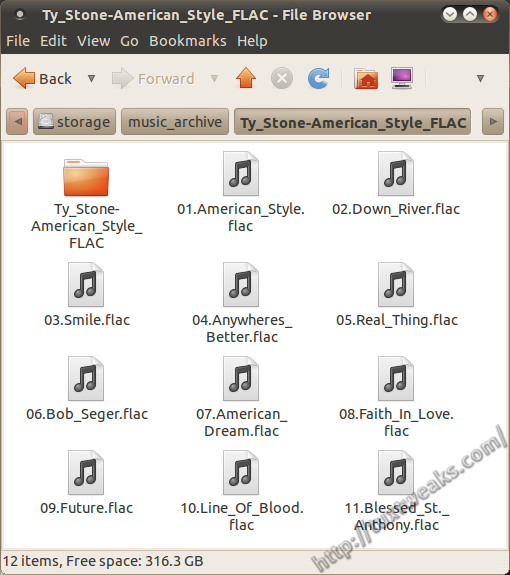
And here's the subdirectory containing the new MP3 files.

#
Thanks for correcting me about the min and max bitrate callouts. I used your pipeline from your flac to ogg post and I noticed it also pulled across the flac metadata (flacid tags as distinct from the id3v2 tags used for mp3) as stated in the documentation...)
#
Hi there, thanks for your script. Could you explain the "VBR quality setting" in the pipeline thanks.
# GStreamer pipeline - use VBR quality setting. Range allowed 0-10 with
# 0 being the best quality.
gst-launch filesrc location="$FILE" ! decodebin2 ! audioconvert ! lamemp3enc target=quality quality=3 ! xingmux ! id3v2mux ! filesink location="./$OUTDIR/$NAME".mp3
done
Where is the variable range (0-10) notated?
The setting "quality=3" does not make sense to me since 1.0 is the highest bit rate for ogg. This is my pipeline for encoding .ogg at (0.9 otherwise known as 320):
audioconvert ! audio/x-raw-int, rate=44100, channels=2 ! audioconvert ! vorbisenc name=enc quality=0.9 ! oggmux
After reading about vorbisenc http://gstreamer.freedesktop.org/wiki/ZeroPointEleven/EncoderConsensus (as seen below) I am assuming that
"vorbisenc.....quality : Specify quality instead of specifying a particular bitrate" means that encoding by default will be VBR when using vorbisenc and thus i don't need to add the variables
vbr-min-bitrate=160 vbr-max-bitrate=320
to the pipeline.
Is this correct?
Any help appreciated thanks..)
#
For the lamemp3enc plugin, the allowed quality values are 0 - 9.999 according to the documentation here: http://gstreamer.freedesktop.org/data/doc/gstreamer/head/gst-plugins-ugly-plugins/html/gst-plugins-ugly-plugins-lamemp3enc.html
I don't know why the Gstreamer developers chose to do these two plugins differently. For vorbisenc, allowed quality values are -0.1 - 1, while in the stand alone oggenc program, the quality values range from -1 - 10. Here's a link to the oggenc man page: http://linux.die.net/man/1/oggenc
If you are using the quality based encoding, you shouldn't need the min and max bitrate callouts. Here's a post where I did some pipelines converting FLAC to Ogg Vorbis: http://tuxtweaks.com/2010/12/converting-audio-files-with-gstreamer/