I recently received a Pogoplug as a birthday gift. If you’re not familiar with the Pogoplug, it is a small Linux based plug computer that allows you to share personal files over the web. You can think of it as your own personal cloud storage server. While you can always access your Pogoplug files through the web interface, it’s nice to have local access to the files straight from your file manager. In this tutorial I’ll show you how to mount the Pogoplug on Linux and how to get it to mount automatically when your computer boots. I’ll be writing these directions for Ubuntu Linux 12.04, (I’m using Kubuntu 12.04 actually), but it should work similarly for other versions and distributions. I’m assuming that you’ve already plugged your Pogoplug into your router, activated it, and you can access your files through the web interface at http://my.pogoplug.com.
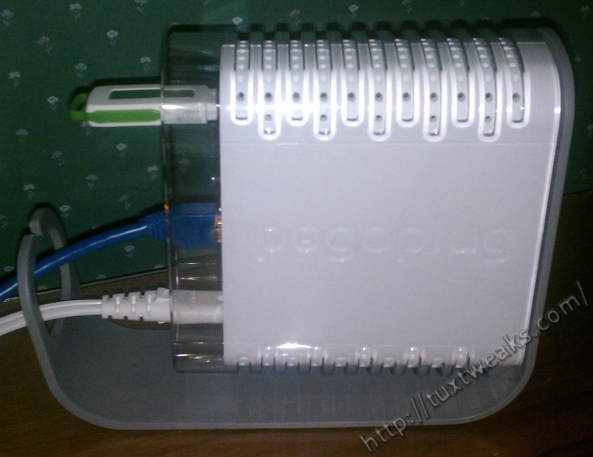
My Pogoplug E02G
Finally, a word of warning. If you mess this up you could end up using all of your RAM and crashing your system. So if you’re not comfortable with rescuing a broken system you may want to stop after learning to mount the Pogoplug manually.
Download pogoplugfs
pogoplugfs is the driver software you’ll need to mount your Pogoplug as a local file system on Linux. There are two different versions of the software based on whether you’re using a 32 bit or 64 bit version of Linux. If you’re not sure whether you’re using 32 bit or 64 bit Linux, open a terminal window and enter the command:
[term]uname -i[/term]
If you’re on 64 bit, you should see something like x86_64 as a result. If you’re on 32 bit Linux, you should see something like i386 or i686 as a result.
OK, now that you know your architecture, let’s get started. Go to your terminal window and create a directory to work in temporarily.
[term]mkdir pogo
cd pogo[/term]
Now we’ll download the needed software from pogoplug.com.
For 32 bit:
[term]wget http://download.pogoplug.com/install/linux/pogopluginstall.tar.gz && tar -xzf pogopluginstall.tar.gz[/term]
For 64 bit:
[term]wget http://download.pogoplug.com/install/linux/pogopluginstall-64.tar.gz && tar -xzf pogopluginstall-64.tar.gz[/term]
Install pogoplugfs
Now that you’ve downloaded the Pogoplug file system driver, you need to put it somewhere in your executable path. You could put it somewhere under your Home directory, but I prefer to put it in a place more generic to the system. I’m going to put it under /usr/local/bin. You need to do this as root, so for Ubuntu I’ll use sudo.
[term]sudo cp ./pogoplugfs /usr/local/bin[/term]
Create a mount point for the Pogoplug
Now you need to create a mount point for the Pogoplug. This is the location in your file system where the Pogoplug’s files and folders will show up. Since Ubuntu normally mounts USB drives under /media, that seems like a good place for the Pogoplug as well.
[term]sudo mkdir /media/pogoplug[/term]
Now make sure that the mount point is owned by the user root and the group fuse.
[term]sudo chown root:fuse /media/pogoplug[/term]
And finally, we need to change the permissions of the mount point.
[term]sudo chmod 775 /media/pogoplug[/term]
Add your ID to the fuse group
In order to mount your Pogoplug, your ID needs to be a member of the fuse group. You can check to see if you’re already a member with the groups command.
[term]groups[/term]
My output looks like this:
[term]linerd adm cdrom sudo dip plugdev lpadmin sambashare[/term]
As you can see, the fuse group isn’t listed, so I’ll need to add myself to the fuse group.
[term]sudo usermod -aG fuse $(id -un)[/term]
You’ll have to log out and log back in before the change takes place. (Make sure to bookmark this page so you can get back to it.) After you log back in, you can use the groups command again to verify that you’re now part of the fuse group.
Mount the Pogoplug
Now that you’ve made the change to your group membership, you should be able to mount the Pogoplug.
[term]pogoplugfs –user [email protected] –password YourPassword –mountpoint /media/pogoplug &[/term]
Of course, make the appropriate substitutions using the email address and password you used to register your Pogoplug. If you open your file manager and navigate to /media/pogoplug, you should now see some folders. There will probably be a folder called Team Folders that will be empty. This is used if you’ve registered for Pogoplug’s team collaboration service. If you haven’t registered for that service it will just be an empty folder. The other folder will be named however you named your Pogoplug device on the Pogoplug web interface.
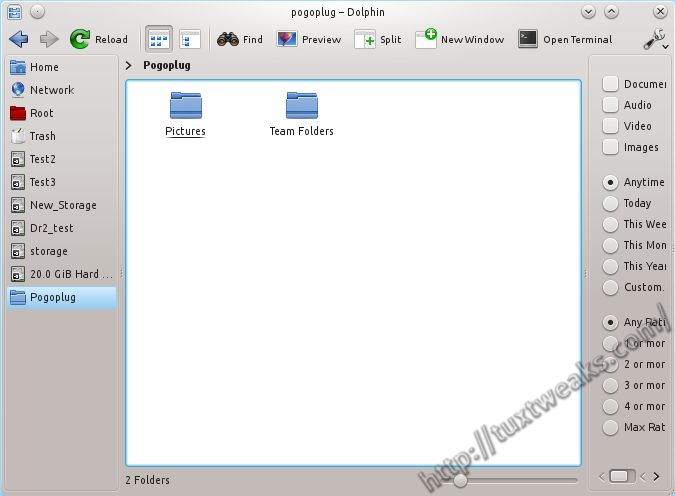
Pogoplug mounted
Mount the Pogoplug on Linux Automatically
If all you want to do is occasionally mount your Pogoplug, then you already know the command and you can just use that when you need it. I prefer to have the Pogoplug mount automatically every time I start up my computer so it’s just like another hard drive on my machine.
The first thing you need to do is create a configuration file under /etc that will hold your login credentials for the Pogoplug. Create and edit the file as root using your preferred text editor. I’ll use nano.
[term]sudo nano /etc/pogoplugfs.conf[/term]
Enter the following into the file, again making the appropriate substitutions.
[term]#This is the defaults file for mounting the Pogoplug with pogoplugfs
svcuser=[email protected]
svcpassword=YourPassword[/term]
Use [CTRL-O] to save the file and then [CTRL-X] to exit. Now it’s kind of scary having your login credentials stored in plain text, so we’ll change the permissions on that file so that regular users can’t read the file. Unfortunately, we’ll still need the file readable by the fuse group, so it’s still a bit of a security risk for your pogoplug account if someone were able to gain access to your machine. You’ve been warned.
[term]sudo chmod 640 /etc/pogoplugfs.conf
sudo chown root:fuse /etc/pogoplugfs.conf[/term]
Next we’re going to make a script to mount the Pogoplug. Again, use your favorite text editor.
[term]sudo nano /etc/init.d/pogomount[/term]
Paste the following content into the file.
[term]
#! /bin/sh
### BEGIN INIT INFO
# Provides:
# Required-Start:     $remote_fs $syslog
# Required-Stop:      $remote_fs $syslog
# Should-Start:       $named
# Default-Start:      2 3 4 5
# Default-Stop:       1
# Short-Description:  Mount pogoplug
# Description:        Mount Pogoplug with pogoplugfs
### END INIT INFO

sleep 10
sudo -u YourID /usr/local/bin/pogoplugfs --mountpoint /media/pogoplug

exit 0
[/term]
Make sure to replace YourID with your Linux login ID. Save the file with [CTRL-O] and exit with [CTRL-X]. Now change the permissions of the script to make it executable.
[term]sudo chmod 755 /etc/init.d/pogomount[/term]
Finally, we will edit /etc/rc.local to call the pogomount script during the boot process.
[term]sudo nano /etc/rc.local[/term]
Now paste the following lines above the exit 0 line.
[term]#Mount Pogoplug
/etc/init.d/pogomount[/term]
Save the file with [CTRL-O] and exit with [CTRL-X].
That’s it. Your Pogoplug should automatically mount when you reboot your computer. This of course assumes that your computer is able to access the network during the boot process. If you can’t get Internet access until you join a wireless network after logging in, then this won’t work for you.
Troubleshooting
The sleep command in the pogomount script is there because I was having a problem on my computer where the script was trying to mount the Pogoplug before the network connection was fully up. I’m sure there’s a more elegant way to handle this, but the sleep command works for me. If you find that your Pogoplug isn’t mounting at boot time, try increasing the sleep time.
If you want to unmount the Pogoplug, use the following command.
[term]sudo umount /media/pogoplug[/term]
To manually mount it again, use:
[term]nohup pogoplugfs –mountpoint /media/pogoplug &[/term]
The nohup command will make sure that the Pogoplug stays mounted even after you close the terminal window.
To see all of the options for pogoplugfs, use
[term]pogoplugfs –help[/term]
If your system is crashing, then reboot into recovery and get a root login prompt. By default you will then be in your system with read only permissions. You will need to remount the root file system with read write permission to make changes to the boot scripts. You can remount read write with
[term]mount -o rw,remount /[/term]
Credits
The following page was helpful in figuring this all out: http://brianhiggins.com/?p=5915
Conclusion
The Pogoplug is a really neat device and if you search the net you can even find them for under $30 sometimes. It’s hackable and there are versions of Arch Linux and Fedora you can run on this ARM based computer. I just got another Pogoplug so I can use one unmodified and hack the other to try turning it into a media server. Have you hacked a Pogoplug or do you have plans to? What special purpose do you have in mind for it?
This content originally appeared at https://tuxtweaks.com/2013/06/mount-your-pogoplug-on-linux/
Ant replacement for the now unavailable “wget http://download.pogoplug.com/install/linux/pogopluginstall-64.tar.gz && tar -xzf pogopluginstall-64.tar.gz”. It only returns:
“HTTP request sent, awaiting response… 403 Forbidden
2016-10-28 10:48:02 ERROR 403: Forbidden.”
I am using MInt 18, unbuntu set up should work.
Oops, apparently (upon bootup this morning) I was mistaken in that last reply:
– Do not add entries to
/etc/network/interfaces, rather just restart the network-manager (e.g. by restarting). The script will be run automatically after restarting if it is in the /etc/network/if-up.d/ directory.– If you add entries to /etc/network/interfaces , the network-manager will see those interfaces are already configured… and won’t run them for you.
Sorry :-/
Thanks for the update. I’m a bit behind on the upgrade cycle. I’m still using 12.04 as my main system. I had no idea that all those fuse packages had been removed from the default install in 14.04. I have no idea why they would do that. It doesn’t make any sense to me.
I like your solution of placing the script in /etc/network/if-up.d.
Hi Miles,
I’m not a Linux expert, but I’d like to have my pogoplug mounted after connecting to my wireless network.
Can you please explain a little bit more the changes you suggest?
Thanks.
Just used this, along with a number of other websites, and here is what is missing:
1) Fuse needs to be installed (from http://brianhiggins.com/?p=5915 ), as it doesn’t come with the default fresh installation. For Ubuntu 14.04 use:
sudo apt-get install fusedav fuseext2 fusefat fusesmbAfter adding your username to the group, logout/login to activate the permissions.
2) Set up the mount script to login on network connect (which will fix your delay issue) rather than at boot time, by these simple changes:
A) Save your script as
/etc/network/if-up.d/pogoplugfs_mountrather than in /etc/init.d/NOTE: Do not save with the .sh prefix. Also the sleep delay is not needed. The chmod 755 is needed.
B) Edit
/etc/network/interfacesand add the following to the end to mount/dismount based upon network connection:auto wlan0
iface wlan0 inet dhcp
post-up /etc/network/if-up.d/pogoplugfs_mount
post-down umount /media/pogoplug
auto eth0
iface eth0 inet dhcp
post-up /etc/network/if-up.d/pogoplugfs_mount
post-down umount /media/pogoplug
I’m not certain the umount is working right there… but the pogoplug mounts correctly when Internet is restored. Hope this helps!
Great turorial!
I added it to my list of highly useful URLs
Thanks
Manual and automatic pogoplug mount work great on Ubuntu 14.04. Thank you very much!
Thanks for letting me know it works. I haven’t tried it on 14.04 yet.
Tried this on Linux Mint 16 Mate and it worked great.
Tried it on Fedora and nothing happens. There is not a fuse group, just a wheel group. Tried to mount Pogoplug with mount command and still does not work.
Thanks for the info, can now access in Mint.
All of my Linux distros are in virtual drives so if I mess one up I can just copy over a backup and try again. Still have one more to try this on, but it is also Unbuntu based so it should work on it as well.
100% smooth. I had tried other sites for help, including the one credited here, but this one actually works. Thanks
Whoa .. found POGOPLUG folder in /media in file manager. Under that are folders of my two POGOPLUG drives and TEAM FOLDERS!! All expected content is shown in each folder. I guess I can’t complain about that. Not exacly the end result I expected, but indeed … my pogoplug iron does appear in File Manager.
Thank you … immensely.
Glad you got it working. 🙂
I pounded my head on the desk for hours trying to get the automatic mounting to work and it was that little sleep command that finally did the magic. I’ll have to go through this again soon since I just got another Pogoplug. My E02 is now running Debian with Plex Media Server to feed my smart TV.
Everything went perfectly … until “Mount the Pogoplug on Linux Automatically”. I followed instruction ‘to the letter’ .. and have not seen POGOPLUG in File Manager since. I am on Lubuntu 12.04 using PCManFM. I have increased the sleep time to 15 .. no joy. What is most upsetting is that:
wacojohn@ubuntuCOMPAQ:~$ sudo umount /media/pogoplug[sudo] password for wacojohn:
wacojohn@ubuntuCOMPAQ:~$ pogoplugfs --user john(xxxxx)@xxxxxxxx.com --password xxxxxxxxxxxxx --mountpoint /media/pogoplug &
[1] 1964
wacojohn@ubuntuCOMPAQ:~$
(blank lines for clarity)
does not (now) mount (or at least show in File Manager) either. It did before the ‘automatic’ step. Hopefully you will get back to me. If not .. hopefully ‘reversing’ the tutorial will take me back to the beginning. I am not a seasoned Linux user.
Otherwise .. excellent tutorial. Worked flawlessly until I took that last step. Thank you.