Why a Bootable USB Drive?
Most computers sold these days don't have a 3.5" floppy drive, yet many computer manufacturers still only provide BIOS flash utilities that require booting to a DOS environment. Luckily there is a free version of DOS called FreeDOS and a utility called UNetbootin to the rescue. Using these two free programs you can create a bootable USB drive that will enable you to flash your BIOS.
If you're looking for the directions to do this on Linux, check out the posts titled Create a Bootable FreeDOS USB Drive on Linux With UNetbootin and Create a Bootable USB Drive with Ubuntu and FreeDOS.
Download and Run UNetbootin
Download the Windows version of UNetbootin from the UNetbootin homepage on SourceForge.net and save it to your computer. Insert an empty USB drive into one of your USB ports. Double click the unetbootin-windows-latest.exe file you downloaded to start the program.
Install FreeDOS to Your USB Drive
Click the drop down arrow for the == Select Distribution == field and select FreeDOS.

If you only have one USB drive plugged into your computer, then you should be all set with the defaults. Otherwise, select your preferred USB drive from the Drive field and then click OK. UNetbootin will then begin to download FreeDOS and install it to your USB drive.
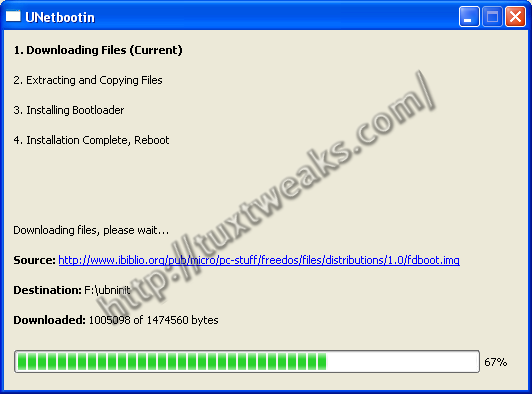
Once the process is complete, click Exit.
Copy the BIOS Flash Utilities
Assuming your reason for creating you bootable USB drive was to flash your BIOS, you now need to copy the BIOS flash utilities from you computer manufacturer to the USB drive.
Reboot
You can now reboot your computer to boot up to the USB flash drive. Make sure to set your computer's BIOS to boot to USB. Once you boot to FreeDOS you will end up at an A:\> prompt. The files you copied to flash the BIOS should be found under the C:\ drive. Just enter
at the A:\> prompt to access the C drive. You can then see the files with the DIR command.
#
I keep getting error say this program must be run under Win32.in command prompt
#
Sounds like your BIOS flash utility is made specifically for Windows, not for DOS. Check with your computer manufacturer to see if they have a DOS version of the BIOS flash utility.
#
Worked great on a Dell Latitude E5510 that would not update any other way.
Thanks!!
#
You are quite welcome.
#
Did NOT work. Gave some error involving missing Grub files... =(
#
Hmm. Sorry it didn't work for you. Unetbootin is usually a solid tool for making bootable USB drives.
#
thanks mate
simple,
to the point.
#
why can't i access c: after booting?
#
This was very helpful and allowed me to format an antique lacking a functioning optic drive.
Thank you very much.
#
This was very helpful and allowed me to format an antique lacking a functioning optic drive.
Thank you very much.
#
Pat on the back for this post. Outstanding!
#
para uso en casa
#
Thanks a lot for this. I followed your instructions and was able to do a needed BIOS update on a server with no floppy.
#
thanks this helpful:)