There are a few common problems that people run into after installing LAMP on Ubuntu. In this post I’ll show how to fix a few of those problems. If you don’t already have LAMP set up, please see How To Install LAMP on Ubuntu.
Fixing phpMyAdmin
One common error that some people make is that they forget to mark apache2 during the phpMyAdmin configuration. When this happens you’ll get a 404 Not Found error when trying to navigate to http://localhost/phpmyadmin/.

If this happens, enter the following terminal command.
[term]sudo dpkg-reconfigure phpmyadmin[/term]
You will be prompted about reinstalling the database. Accept the default of “No” and hit <Enter>.
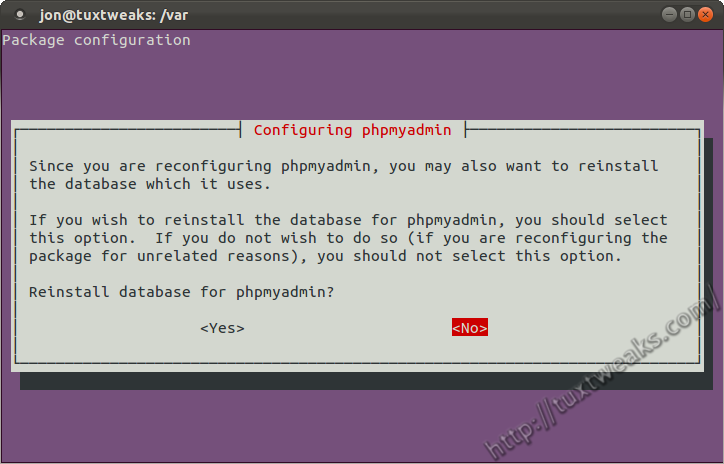
Make sure to then mark apache2 by having the cursor next to apache2 and then hitting <Space> to mark it with a *, then hit <Enter>.
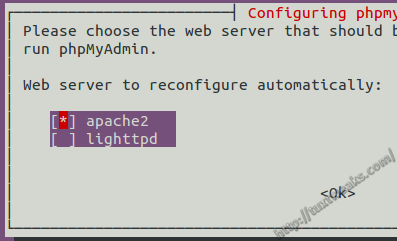
You will then need to reload Apache.
[term]sudo service apache2 reload[/term]
You should now be able to load http://localhost/phpmyadmin/. If you’re still seeing the 404 Not Found error, then you will need to clear your web browser cache and try again.
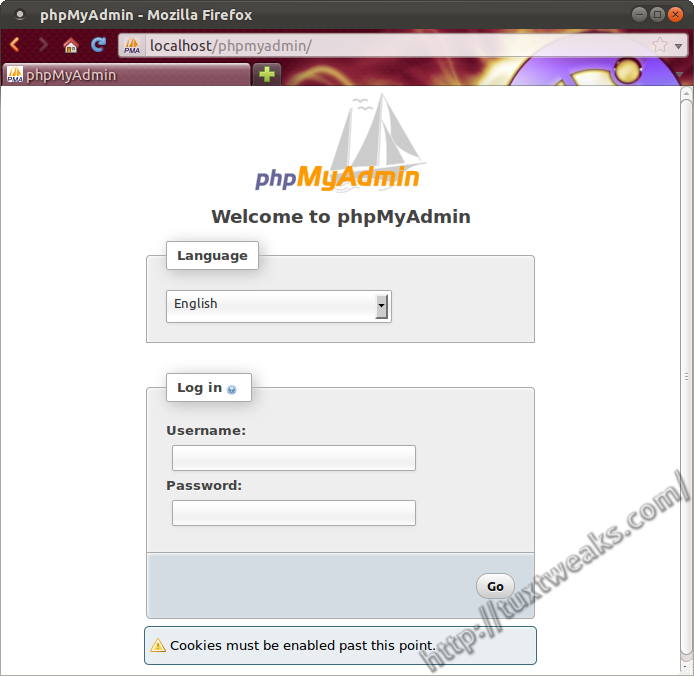
Click to enlarge
Fixing the Apache fully qualified domain name
During the above steps you may have seen an error message like this when reloading Apache.
[term]
apache2: Could not reliably determine the server's fully qualified domain name,
using 127.0.1.1 for ServerName
[/term]
This doesn’t seem to cause any problems for me, but if you don’t like seeing that error, you can fix it with this command.
[term]echo “ServerName localhost” | sudo tee /etc/apache2/conf.d/fqdn[/term]
Then reload Apache with
[term]sudo service apache2 reload[/term]
Remove LAMP?
Is your LAMP setup a mess and you just want to start over? Follow these instructions to Remove LAMP from Ubuntu.
Fixing the Apache fully qualified domain name
During the above steps you may have seen an error message like this when reloading Apache.
apache2: Could not reliably determine the server’s fully qualified domain name,
using 127.0.1.1 for ServerName
This doesn’t seem to cause any problems for me, but if you don’t like seeing that error, you can fix it with this command.
**Before, you have to create a folder named “conf.d” in – etc/apache2/ – then use the command:
echo “ServerName localhost” | sudo tee /etc/apache2/conf.d/fqdn
Then reload Apache with
sudo service apache2 reload
Great Tutorial
I was getting the 404 error for phpmyadmin as well, and what worked for me was to add the line “Include /etc/phpmyadmin/apache.conf” in the /etc/apache2/apache2.conf (as per https://help.ubuntu.com/community/ApacheMySQLPHP)
Hi Everyone,
I get localhost page i.e., “It Works”
But i can’t access localhost/phpmyadmin page , It say 404 error.
Help me
Finally I got it by using
sudo dpkg-reconfigure -plow phpmyadmin
sudo ln -s /etc/phpmyadmin/apache.conf /etc/apache2/conf.d/phpmyadmin.conf
sudo /etc/init.d/apache2 reload
Thank you buddy, that did the trick for me too
@Samanta, I don’t think this a is a error message or at least an error message that you should be worries about. This is just a log of when the apache daemon was restarted. Nothing nasty.
Hi I think I have a problem when I reload apache this appears in the error.log
[Wed Jul 18 13:44:58 2012] [notice] Graceful restart requested, doing restart
[Wed Jul 18 13:44:58 2012] [notice] Apache/2.2.22 (Ubuntu) PHP/5.3.10-1ubuntu3.2 with Suhosin-Patch configured — resuming normal operations
And this when I restart Apache
[Wed Jul 18 13:50:44 2012] [notice] caught SIGTERM, shutting down
[Wed Jul 18 13:50:45 2012] [notice] Apache/2.2.22 (Ubuntu) PHP/5.3.10-1ubuntu3.2 with Suhosin-Patch configured — resuming normal operations
this didn’t appear before =(
the and was missing from my post (a space instead). don’t put the p inside the < in the quotes.
Local host shows blank php page in browser but html page are working fine.It shows no error,but just blank page.
I had this problem too, a tutorial I used was wrong. Do not put and inside double quotes. The example said,
echo ” This is a PHP line “;
When corrected to
echo “This is a PHP line”;
it works. I’m still new to this, but that change fixed the blank page, displays now.