There are several log files in a Linux system. Keeping an eye on these log files can be one of the important tasks of a Linux System administrator. You can easily view the end of a log file using the tail command. But if you want to monitor that file all day long it’s pretty tedious to enter the tail command every few minutes to check on that log file. You could write a short script with an infinite loop to check the file periodically, but it turns out that there is already a program to handle repetitive tasks for you.
The Linux watch Command
The watch command in Linux provides a way to handle repetitive tasks. By default watch will repeat the command that follows it every two seconds. As you can imagine, watch is a great tool to keep an eye on log files. Here’s an example.
[term]watch tail /var/log/syslog[/term]
In order to stop the command execution, just use the standard kill sequence, [Ctrl]+C.
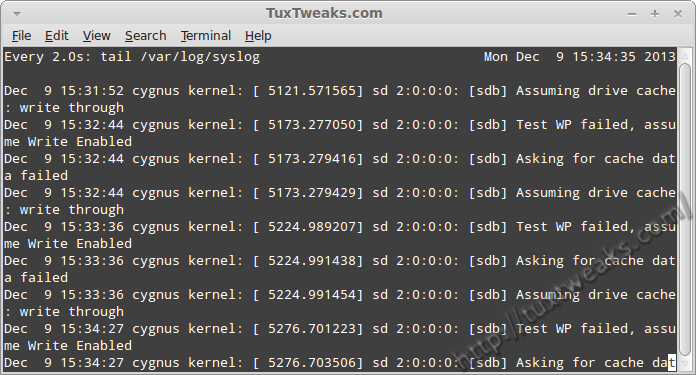
Using the Linux watch command to monitor the syslog
You can change the time interval by issuing the -n switch and specifying the interval in seconds. To check the log file every 10 seconds, try this.
[term]watch -n 10 tail /var/log/syslog[/term]
The Linux watch Command with a Pipe
The watch command isn’t limited to viewing log files. It can be used to repeat any command you give it. If you have your system set up to monitor the CPU temperature, you can use watch to view that with the sensors command.
[term]watch -n 1 sensors[/term]
The output on my netbook looks like this:
[term]
acpitz-virtual-0
Adapter: Virtual device
temp1:        +45.0°C  (crit = +100.0°C)
[/term]
I’d like to filter this output to only show the temperature output without all of the rest.
I can use this command to view it one time.
[term]sensors | grep temp | awk ‘{ print $2 }'[/term]
Keep in mind that the watch command will repeat the first command that is sees. Care must be taken when pipelining one command to the next. This can be managed by placing your command pipeline inside quotes.
[term]watch -n1 “sensors | grep temp | awk ‘{ print /$2 }'”[/term]
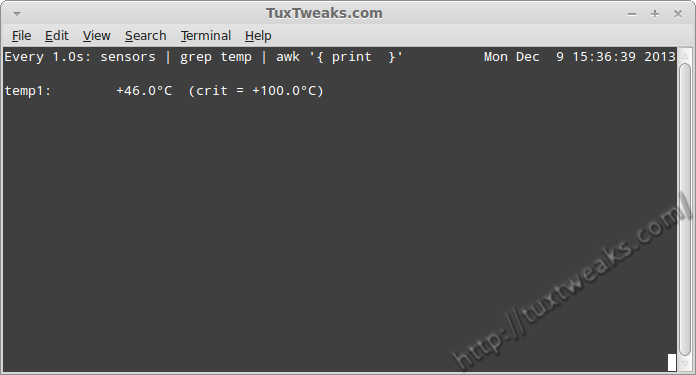
Using the Linux watch command with a pipe
Use watch as a clock
As you’ve probably noticed by now, the watch command shows the time that the command was executed in the upper right corner of the terminal window. We can use watch as a simple clock by passing an empty command line argument. We can just enclose a space in quotes to act as the empty command.
[term]watch -n 1 ” “[/term]
So you can see, this gives another meaning for the command name, watch. You can use it just like your wrist watch.
So now you know how to use the Linux watch command. What repetitive tasks will you use it to handle?
The ‘watch pipe with awk’ command is wrong; awk does not do anything here. That is because the argument to watch is enclosed in double quotes, which evaluates the ‘$2’ part _before_ even passing it to watch. So awk just receives “print” as command (also seen in the screenshot) and subsequently just prints what it gets.
You need to escape the $ to get awk to do what it should:
watch -n1 “sensors | grep temp | awk ‘{ print \$2 }'”
By golly, you’re right! You’re the first one in 4 1/2 years to notice.
Thank you for your blog. It is very useful for me.
This may help someone new to shell scripting if you find yourself on a system without watch:
## while true; do ; sleep ; done
will work as a minimal implementation, work with pipes, etc. As an example like the post above:
## while true; do clear; sensors | grep temp | awk ‘{ print $2 }’; sleep 1; done
Any number of commands can be stacked with semi-colons separating them.
You coule also use tail -F file…
Auto refresh and display even when the file change.
You are exactly correct. I was struggling to come up with a good example when I wrote this, so I used the tail example. tail -F is certainly more appropriate for that particular task.
Thanks for your comment.
Completely agree. `watch` proved to be one great tool that I personally find it extremely helpful. It is also cool when you add the ‘-d’ argument, it highlight the differences between successive updates so you can actually easily notice when something has changed.
for example:
## watch -d -n1 “sensors | grep temp | awk ‘{ print $2 }'”
cheers